How to Make a Free Stream Overlay for OBS (Templates, Themes, No Design Skills)
You want your stream to look polished, but you don't own design software, and hunting for overlay packs takes forever. A plain "game plus camera" screen works, but it can feel generic, and a first-time viewer decides in seconds whether a channel looks worth staying on.
This guide shows how to make a stream overlay for free in your browser and add it to OBS. You pick a template and a theme, and that's the whole design job.
 Offline Transcriber (overlay maker)Free to use. 9 templates, 8 themes.Open the tool
What the overlay maker does
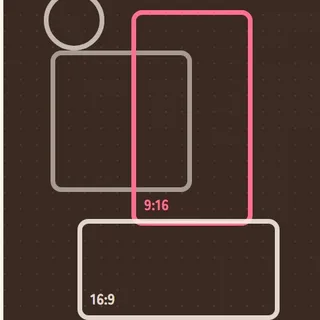
You place four frames (camera, game, chat and captions) and export an image to lay over your scene in OBS. The camera and game frames are transparent, so your video shows through.
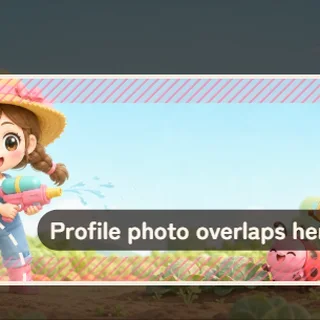
- 9 templates: Gaming (camera left), Gaming (camera bottom right), Gaming (no camera, tall chat), Just chatting (big camera), Working / drawing, Singing / ASMR, VTuber (avatar right), Vertical (TikTok / Shorts) and Starting soon
- 8 themes: Neon, Candy, Calm, Mech, Washi, Pop, Forest and Retro, plus color sets you can switch between
- Your own logo: add an image. It's used on your PC only and never uploaded.
- Readability check: it tells you if something looks hard to read
How to make one
1. Open "For live streams" and pick a template
Open Offline Transcriber, choose "For live streams", and open "Stream overlay maker (frames for OBS)". Start by picking the template closest to your stream.
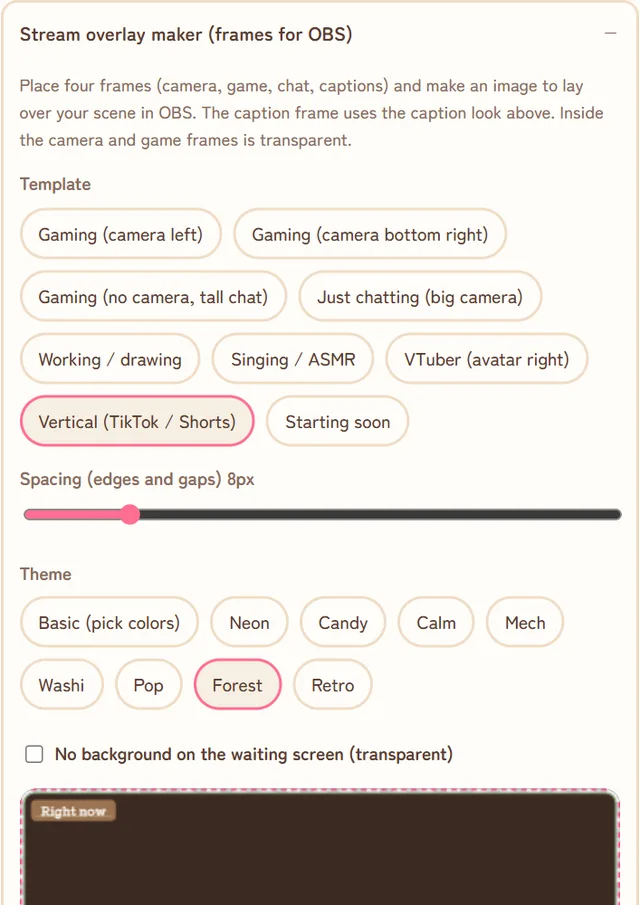
2. Pick a theme for the mood
A theme changes the colors and the shape of the frames in one tap. The same template can feel completely different.
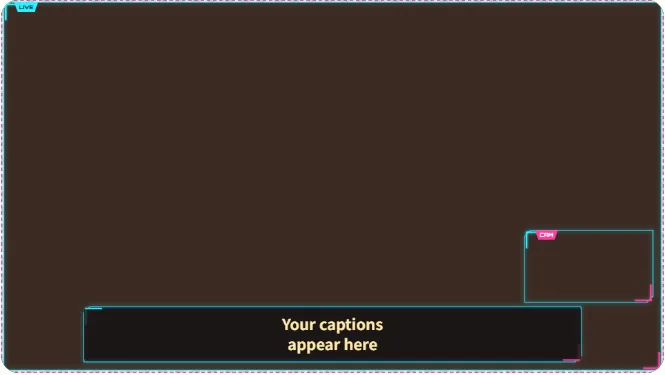
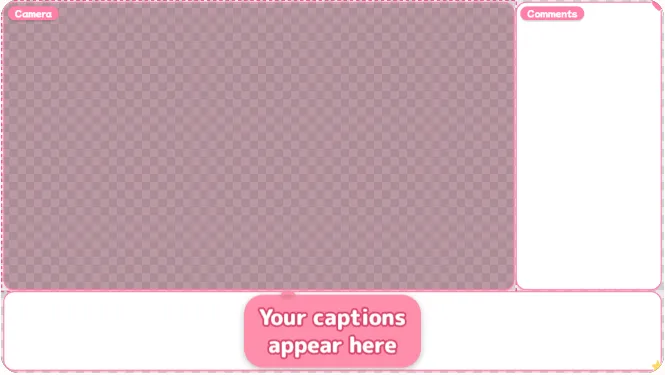
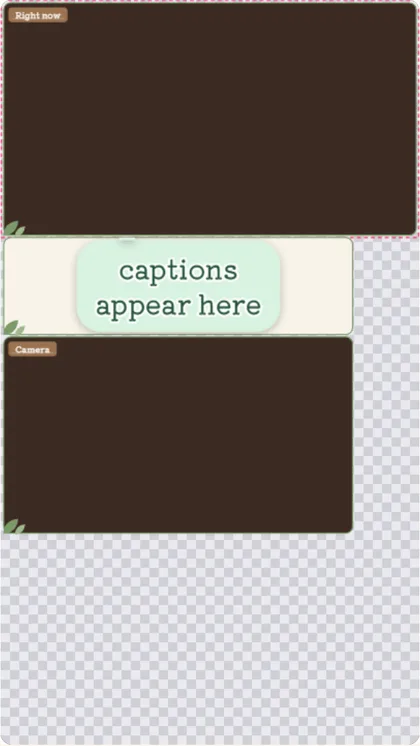
3. Move and resize the frames
Drag a frame to move it. A selected frame also moves with the arrow keys (hold Shift for bigger steps), and you can type exact numbers too. "Spacing" controls the gap between the frames and the edges.
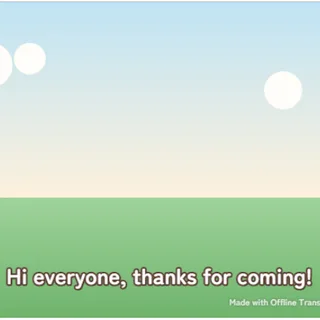
The caption frame follows the caption look you chose for live captions, and your captions appear right inside it.
4. Add your logo and run the readability check
Add a logo image, then choose its position and width. The readability check tells you if there's a problem, and you can adjust the colors if so.
5. Export and put it in OBS
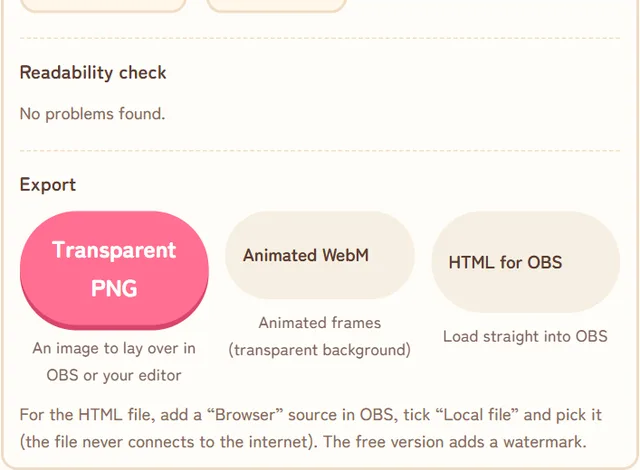
| Transparent PNG | An image to lay over OBS or your editor. The easiest option. |
|---|---|
| Animated WebM | Animated frames with a transparent background |
| HTML for OBS | Load it as a Browser source with "Local file" ticked. The file never connects to the internet. |
To use the transparent PNG in OBS:
- Set up your game and camera sources as usual
- Click the + under Sources, choose "Image", and select the exported PNG
- Move this image above your game and camera sources. The frames are transparent, so your video shows through.
Tips for a clean-looking stream
- Don't squeeze the game too small. Oversized frames make the action hard to see.
- Keep important game UI clear. Health bars and maps sit in different places in every game, so test with the real game running.
- Stick to one theme's colors. It looks more cohesive.
- Keep the caption frame. If you add live captions later, they'll appear inside it.
Free vs. paid
The overlay maker is free to use, and exports carry a watermark. The paid Creator version (a one-time purchase) exports without it, and also removes the time limit and logo from live captions. Check the price on the tool page. It's not a subscription.
Build an overlay for free first and see whether it suits your channel.
Summary
- Pick a template (9) and a theme (8) and your overlay frames are done
- Export a transparent PNG and put it above your game and camera in OBS
- Check readability, and test with your real game
- Free to try (watermarked), and your logo and images are never uploaded
Build your overlayFree to try. Your images stay on your PC.Open the tool
Sources
Last checked October 21, 2026. OBS menu names can differ slightly between versions.