How to Split a PDF on Your Phone (Extract Pages, Free, No Upload)
You have a 40-page PDF, but you only need two pages. Someone asks you to "just send that part." Or you want to break a long manual into chapters. In each case, the answer is to split the PDF and keep only the pages you need.
This guide shows how to split a PDF on your phone: extract selected pages, save every page as its own file, or split by page ranges. It all works in your phone's browser, with no app to install.
 Private PDF Merge & SplitExtract pages or split every page into its own PDF. Free, no sign-up.Open the tool
Short answer: add the PDF, choose "Split", pick how, save
- Open Private PDF Merge & Split in your phone's browser and add your PDF.
- Under the save options, choose Split, then pick one of three ways to split.
- Selected pages: the pages you tap become one new PDF (page extraction).
- Every page: each page becomes its own PDF.
- Ranges: type something like "1-3, 5" to get two PDFs, one with pages 1 to 3 and one with page 5.
- Your PDF is never uploaded. Everything happens on your phone, which makes it a good fit for private documents.
Which option should you use?
Send only part of a document → "Selected pages"
Use this when you want to share just a few pages, or make a copy without the pages you don't need. Pages don't have to be next to each other: picking pages 2 and 7 still gives you one PDF.
One file per page → "Every page"
Use this when you scanned a stack of papers into one PDF and want each sheet as a separate file. Since you get more than one file, they are saved together in a ZIP file.
Split by chapter or section → "Ranges"
Use this to break a manual or report into parts. Typing "1-10, 11-20, 21-" gives you three PDFs ("21-" means page 21 to the end).
How to split a PDF (iPhone and Android)
1. Open the tool and add your PDF
Open Private PDF Merge & Split in your browser, tap "Choose files" and pick the PDF. If the PDF came by email or a messaging app, save it to your phone first so you can choose it here.
2. Choose "Split"
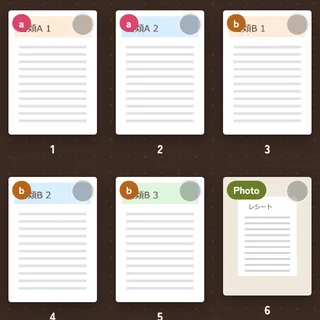
Your pages appear as small thumbnails. Tap Split in the save options, and the "Split by" choices appear.
3. Pick how to split
- Selected pages: tap the pages you want to keep. Selected pages get a check mark.
- Every page: nothing else to do. All pages are split.
- Ranges: type page numbers like "1-3, 5" in the "Page ranges" box. Each part between commas becomes its own PDF. Pages outside your ranges are dimmed, so you can check at a glance.
4. Save
Enter a file name and tap the save button. It says "Save PDF" when you get one file, and "Save ZIP" when you get more than one. On a phone, you can also tap "Share" to send the result straight to email or a messaging app.
On iPhone, tap the ZIP in the Files app to open it. On most Android phones, a file manager app such as Files can open it (the app name varies by phone).
Things to know before you split
Your original PDF stays the same
Splitting does not change or delete the original. The new PDFs are saved as separate files, so you can always try again.
Check the pages and the recipient before sending
Open the new PDF and make sure it doesn't include unrelated pages or personal details such as names and addresses. Before sending, double-check who you are sending it to.
Password-protected PDFs can't be split
PDFs with a password or editing restrictions can't be opened in this tool. Remove the password first.
FAQ
Do I need an app?
No. Just open the page in your browser. It works on both iPhone and Android.
Is my PDF uploaded anywhere?
No. Splitting happens entirely inside your phone's browser. Once the page has loaded, it even works offline.
Can I reorder pages or combine files again?
Yes. Press and hold a page, then drag to reorder. To combine several PDFs into one, see how to merge PDFs on your phone.
Is it free?
Yes, free with no sign-up, no usage limits and no watermark.
Summary
- Add the PDF, choose "Split", pick how, and save
- "Selected pages" to send part of a file, "Every page" for one file per page, "Ranges" for chapters
- The original stays as it is. Check the pages and the recipient before sending
Try splitting a PDFKeep only the pages you need. Your files are never uploaded.Open the tool
Need to turn photos into a PDF? See how to turn photos into a PDF on your phone. More PDF guides are in the PDF articles list.
Checked on November 14, 2026 against the tool's instructions and settings screens.
If you find any errors, please let us know via our contact page and we will correct them.