How to Merge PDFs on Your Phone (Free, No Upload, iPhone & Android)
Someone asks you to "send everything as one PDF," but all you have is a few separate PDFs and some photos on your phone. You'd rather not open a computer just for that.
This guide shows how to merge PDFs and photos into a single PDF using only your phone, with real screenshots. The tool is free, needs no sign-up, and never uploads your files.
 Private PDF Merge & SplitCombine PDFs and photos into one PDF. Free, no sign-up, no upload.Open the tool
The short answer: open it in your browser, add files, arrange, save
- You can merge PDFs right in your phone's browser (Safari or Chrome), with no app to install.
- Photos of documents or receipts can go into the same PDF as your other files.
- Long-press a page and drag it to change the order.
- For contracts, certificates and other private papers, use a tool that doesn't upload your files.
How to merge PDFs on your phone
These steps use Private PDF Merge & Split, a free tool from Chocotto Games. They're the same on iPhone and Android.
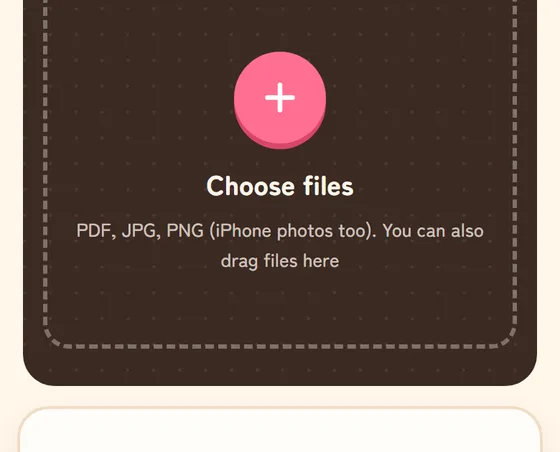
1. Open the tool and tap "Choose files"
Open Private PDF Merge & Split and tap "Choose files" in the middle. Pick as many PDFs and photos as you like. You can add more later with "Add more".
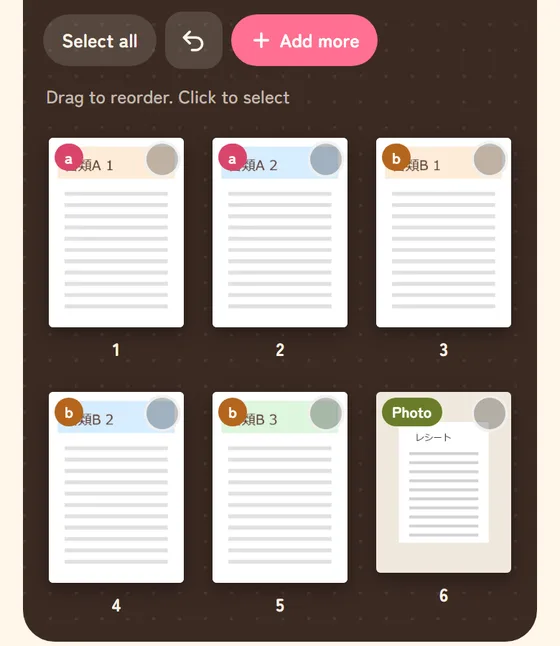
2. Put the pages in order
Each page appears as a small thumbnail. The badge in the corner (a, b, Photo) shows which file it came from. To change the order, long-press a page, then drag it. Tap a page to select it, then use Delete to remove it or Rotate to fix a sideways page.
3. Save with "Merge into one"
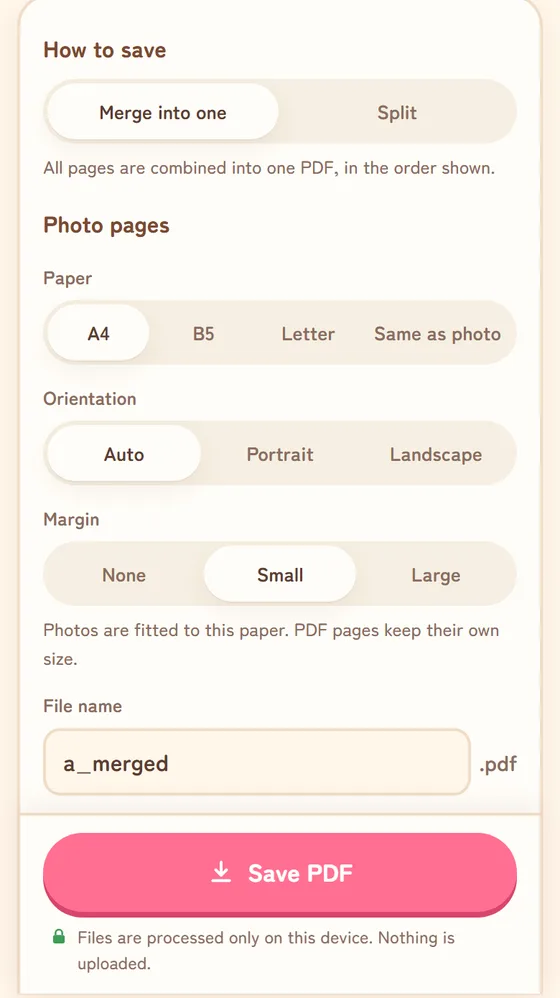
Make sure "How to save" is set to "Merge into one", then tap "Save PDF". All pages are combined into one PDF in the order shown. You can rename the file before saving.
If you added photos, choose the paper size (A4, Letter and more), orientation and margin under "Photo pages". For documents, use the paper size the recipient expects.
On a phone, you can then use Share to send the PDF by email or a messaging app.
Check before you send
- Page order. Make sure it reads the way the recipient expects (cover, main pages, attachments).
- Orientation and clarity. Look for sideways pages or blurry photos. Shoot documents in good light, straight from above.
- File name. A clear name like "Name_DocumentType" helps the recipient.
- Submission rules. Some offices set rules for file type, size or how to send. Follow their instructions if they have any.
Why use a tool that doesn't upload files
Some online PDF services send your file to their servers to process it. Tax forms, insurance certificates and contracts often include your name, address and other personal details.
Private PDF Merge & Split reads and builds PDFs entirely on your own phone or computer. Nothing is stored on this site. Once the page is open it even works in airplane mode, so you can check for yourself that nothing is sent.
FAQ
Is it really free?
Yes. No sign-up, no usage limits, and no watermark on your PDFs.
Can I add iPhone photos (HEIC)?
Yes, just choose them as they are. If one won't open, export it as JPEG from your photos app and add it again.
How many pages can I merge?
There's no fixed limit, but on a phone about 300 pages in total is a good guide. For very large files, a computer works better.
Can I merge password-protected PDFs?
PDFs with a password or editing restrictions can't be opened. Remove the password first.
Can it split PDFs too?
Yes. Choose "Split" under "How to save" to save selected pages, every page separately, or page ranges.
Summary
- You can merge PDFs and photos into one PDF in your phone's browser
- Choose files, put the pages in order, then save with "Merge into one"
- For private documents, use a tool that keeps files on your device
Merge your PDFsPDFs and photos into one file, right on your phone.Open the tool
Find more free tools with no sign-up, like image resizing and QR codes, on the tools page, or browse all how-to articles.
Checked by running the tool on October 31, 2026.
If you find any errors, please let us know via our contact page and we will correct them.