How to Put a QR Code on a Christmas Card (Photos & Video)
A holiday card only has room for a photo or two. But what if you want to share a whole year of family photos, or a short video message?
Put a QR code on the card. When someone points their phone camera at it, your photos or video open right away. In short, it takes three steps:
- Put your photos or video on a shareable page (a shared album, an unlisted video, and so on)
- Turn that page's link into a QR code that never expires
- Print it on the picture side of your card, about 2–3 cm (0.8–1.2 in) square
This guide shows how to make the QR code for free with no sign-up, and what to check before you print, with real screenshots. It works the same for Christmas cards, New Year cards or any greeting card.
 Forever QR Code GeneratorNever expires, no sign-up. Add a “Watch our video” label.Open the tool
What can you share with a QR code on a card?
A QR code usually holds a link (URL). Whoever scans it opens that page on their phone, so anything on the page can be shared. For example:
- An album of the kids' or grandkids' photos from the year
- A video greeting from the family, or clips from a school concert
- Wedding, new baby or new home news with photos
- For a shop or class: holiday opening hours or a seasonal notice
You can't put the video itself on paper. The photos or video live somewhere online, and the QR code tells people where to find them.
Before you start: get the link you want to share
Upload your photos or video to a shareable page and copy its link. Most photo and video apps have a “Share” or “Copy link” button for this.
Check three things before you use the link:
- Who can see it. Often anyone with the link can open it, and cards can be seen by people outside the family. Leave out photos that show your address or the kids' school.
- How long it stays up. If you delete the album or video, or stop sharing it, the QR code will open nothing. People keep cards for a while, so leave the page up for at least a few months.
- Whether it needs a sign-in. A page that opens on your phone may ask others to sign in. Try opening it on a family member's phone first.
How to make a QR code for your card
1. Choose “URL” and paste the link
Open the Forever QR Code Generator, choose “URL” and paste your link. The QR code appears right away.
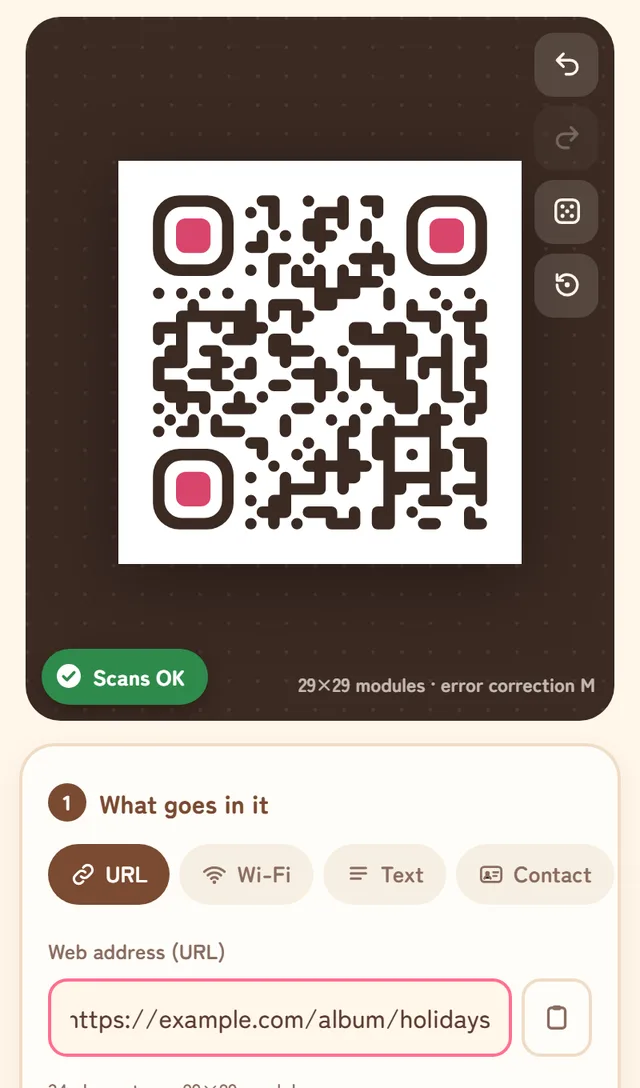
The “Scans OK” badge means the tool has checked that the code can be read. If you change the colors to match your card, avoid pale colors or colors close to the background, which are harder to scan.
2. Add a label like “Watch our video”
A bare QR code doesn't say what it opens. Under “Frame”, choose “Label below” and type something like “Watch our video” or “See our photos”.
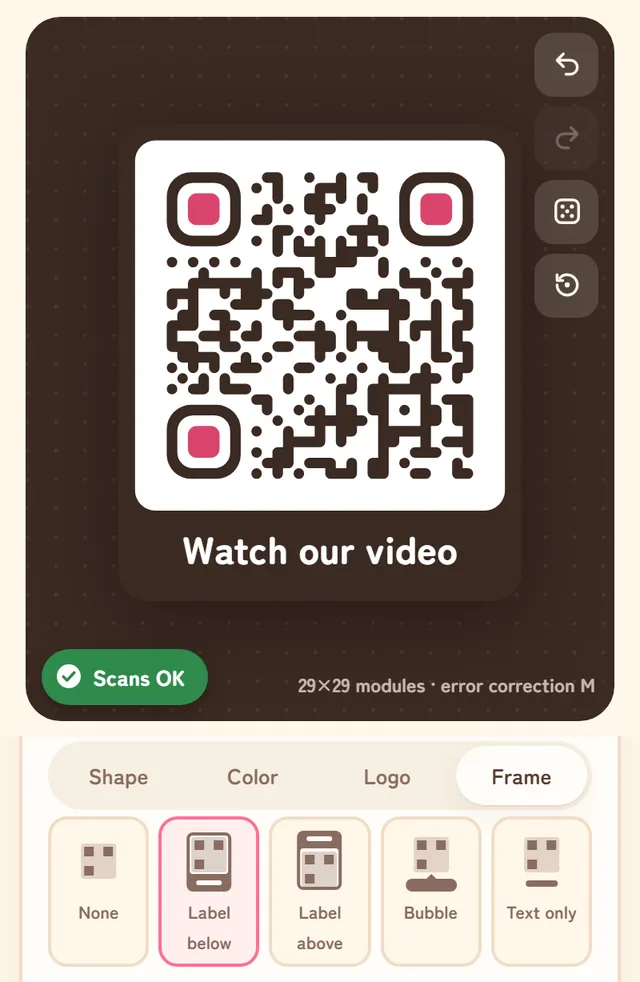
A line in your message such as “Point your phone camera at the code to watch our video” also helps people who rarely scan QR codes.
3. Pick a print size and save
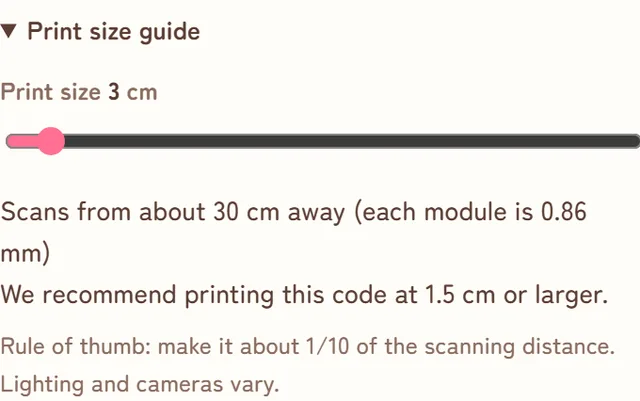
Open “Print size guide” under the save options to see how far away the code can be scanned at each size. People hold a card in their hands, so 2–3 cm (0.8–1.2 in) square is a good size. At 3 cm, it scans from about 30 cm (1 ft) away.
Then save it as a PNG or another format and place it on your card in your card-making app or software.
Before you print
- Keep a white margin around it. Placing the code right on top of a photo or pattern makes it harder to scan.
- Don't print it too small. Codes smaller than the tool's recommended size may not scan.
- Print one test card and scan it. Home printers often print lighter than the screen. Check that it scans and that the page opens before you print them all.
- Avoid QR codes that expire. Some free QR code sites make codes that stop working after a while. The Forever QR Code Generator writes the link straight into the pattern, so it never expires.
Some card-making apps and printing services have their own QR code feature. If you use one, follow that service's instructions.
FAQ
Is my link sent anywhere?
No. The Forever QR Code Generator makes the code on your own phone or computer.
Can I change the video after sending the cards?
The link inside the QR code can't be changed later. But you can add photos or videos to the same album or playlist, so linking to one of those makes it easy to update.
What about people who can't scan QR codes?
Most iPhones and Android phones can scan them with the regular camera app. For anyone who finds it hard, you can also send the link by message or email.
Summary
- Put your photos or video on a shareable page and make its link into a QR code
- Check who can see the page and how long it will stay up
- Add a “Watch our video” label, print it 2–3 cm square, and test-scan one card
Make a QR code for your cardNever expires, no sign-up. Your link never leaves your device.Open the tool
See all our free tools on the tools page, or browse more how-to articles.
Sources
Checked by running the tool on November 4, 2026. The example link (example.com) in the screenshots is for illustration only. QR Code is a registered trademark of DENSO WAVE INCORPORATED.
If you find any errors, please let us know via our contact page and we will correct them.